Overview
Connecting your ATS (Applicant Tracking System) to Jemmo enables automatic synchronization of jobs and candidates, streamlining your recruiting workflow.
Benefits of ATS Integration
- Automatic Job Sync: Job postings from your ATS automatically appear in Jemmo
- Candidate Sync: Candidates and their applications sync seamlessly
- Application Tracking: Track application status from Jemmo's interface
- Data Accuracy: Eliminate manual data entry errors
- Time Savings: Reduce administrative overhead significantly
Supported ATS Providers
Available Now (Ready to Connect)
| Provider | Status | Connection Method |
|---|---|---|
| Teamtailor | ✅ Available | API Key |
| Flatchr | ✅ Available | API Key |
| Jarvi | ✅ Available | API Key |
Beta (Request Access)
| Provider | Status | Connection Method |
|---|---|---|
| Huntool | 🧪 Beta | API Key |
| Spott | 🧪 Beta | API Key |
| We Recruit | 🧪 Beta | API Key |
Coming Soon (On Request)
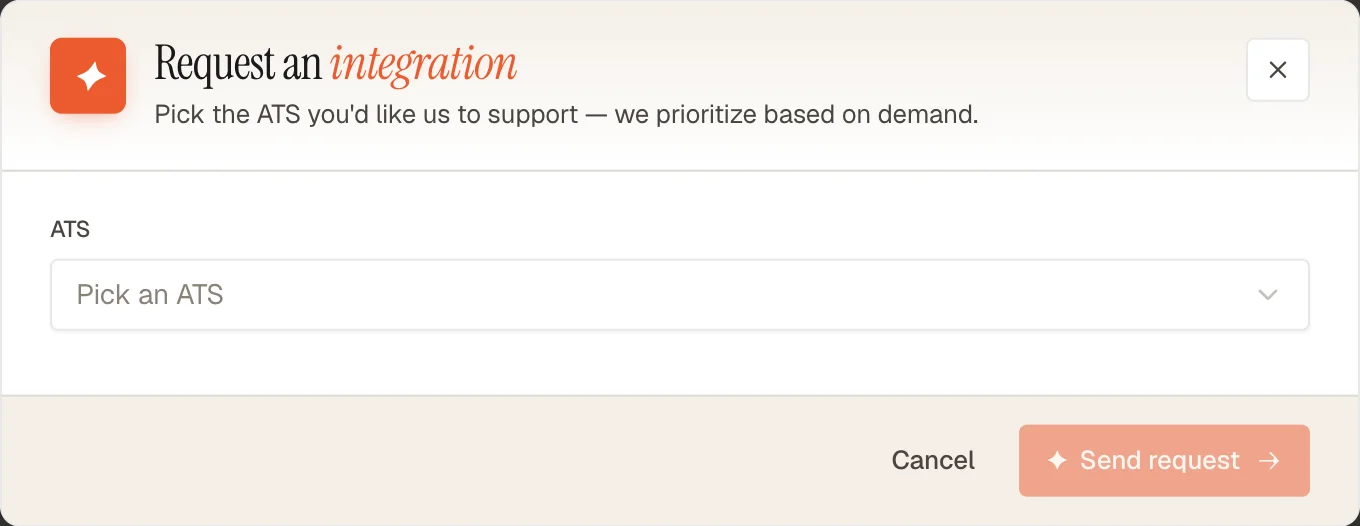
Request access to these providers and we'll notify you when integration is ready:
ApplicantStack, Ashby, BambooHR, Breezy, Bullhorn, Comeet, Crelate, Fountain, Greenhouse, HR Cloud, Homerun, JobDiva, Join, Lever, Manatal, Oracle Taleo, Pinpoint, Recruiterflow, SAP SuccessFactors, SmartRecruiters, Taleez, Tellent, UKG Pro Recruiting, Welcome to the Jungle, Workable, Workday, Zoho Recruit, iCIMS
Step-by-Step Connection Guide
Step 1: Navigate to Integrations
Accessing the Integrations Page:
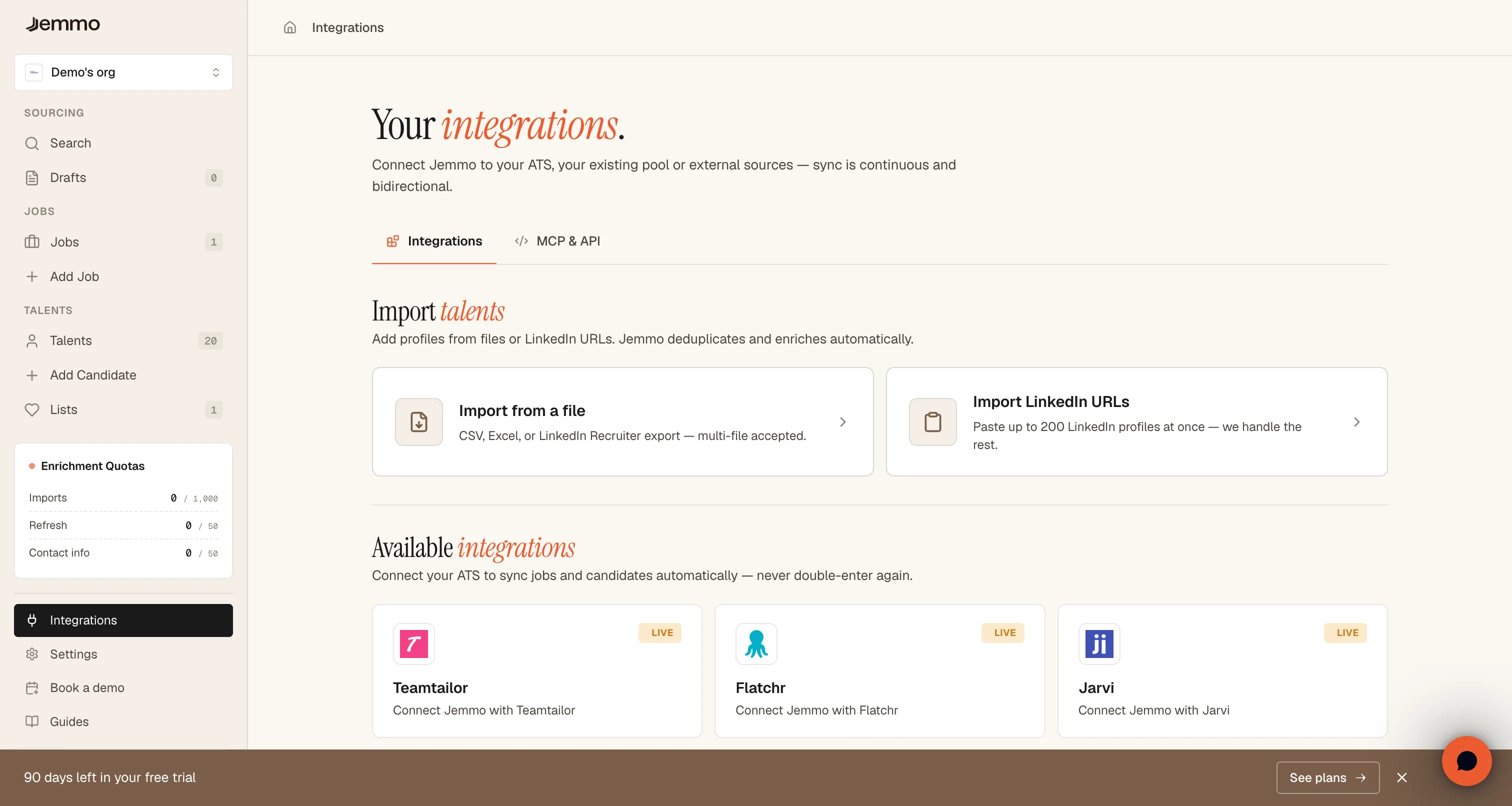
- In the left sidebar, click Intégrations (French) or Integrations (English)
- You'll see the integrations page organized into three sections:
- Importer des Talents (Import Talents) - Import from files or LinkedIn URLs
- Intégrations disponibles (Available Integrations) - Ready to connect
- Intégrations Beta (Beta Integrations) - Request access to beta features
Step 2: Select Your ATS
Choosing Your ATS Provider:
- Under Intégrations disponibles, locate your ATS provider card
- Each card displays:
- ATS Logo - Visual identification
- ATS Name - Provider name (e.g., "Teamtailor")
- Connection Badge - Shows if already connected
- Description - "Connecter Jemmo avec ATS Name"
Selecting the Provider:
- Click on the ATS card you want to connect
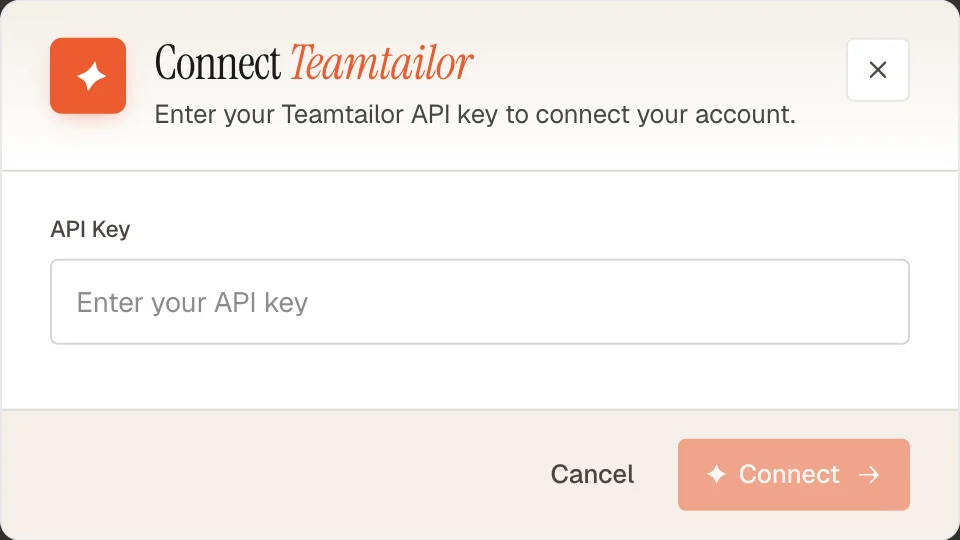
- A connection modal will appear
Step 3: Enter Your API Key
Finding and Entering Your API Key:
- Locate your API key in your ATS account:
- Navigate to your ATS account settings
- Find the API/integrations section
- Generate or copy your API key
- Ensure the key has appropriate permissions (read access for jobs and candidates)
- Enter the key in Jemmo:
- The API Key field is password-masked for security
- Type or paste your API key
- The field validates as you type (enables the Connect button)
API Key Security Best Practices:
- ✅ Never share your API key publicly
- ✅ Store API keys in secure password managers
- ✅ Use read-only API keys when available
- ✅ Rotate API keys periodically for security
- ✅ Revoke unused API keys in your ATS
- ✅ Ensure HTTPS when accessing ATS admin panel
Common ATS API Key Locations:
| ATS | Where to Find API Key |
|---|---|
| Teamtailor | Account Settings > API > Generate API Key |
| Flatchr | Settings > API Keys > Create New Key |
| Jarvi | Account > Integrations > API Management |
Step 4: Connect
Establishing the Connection:
- Click Connecter (Connect) button
- Button is disabled until a valid API key is entered
- Shows loading state while connecting
- Performs validation and setup
- Connection Process:
- Jemmo validates the API key with your ATS
- Permissions are verified
- Connection is established and stored encrypted
- Success Indicators:
- Toast Notification: Success message appears
- Message (French): "ATS connecté - ATS name a été connecté à votre organisation."
- Message (English): "ATS connected - ATS name has been connected to your organization."
- Redirection: Automatically navigates to Settings > Organization page
Error Handling:
If the connection fails, you'll see:
- Error Toast: "Connexion échouée - Impossible de connecter le fournisseur ATS."
- Translation: "Connection failed - Unable to connect ATS provider."
Common Error Causes:
- ❌ Invalid or expired API key
- ❌ Insufficient API permissions
- ❌ Network connectivity issues
- ❌ ATS provider API temporarily unavailable
Step 5: Verify Connection
Confirming Your Integration:
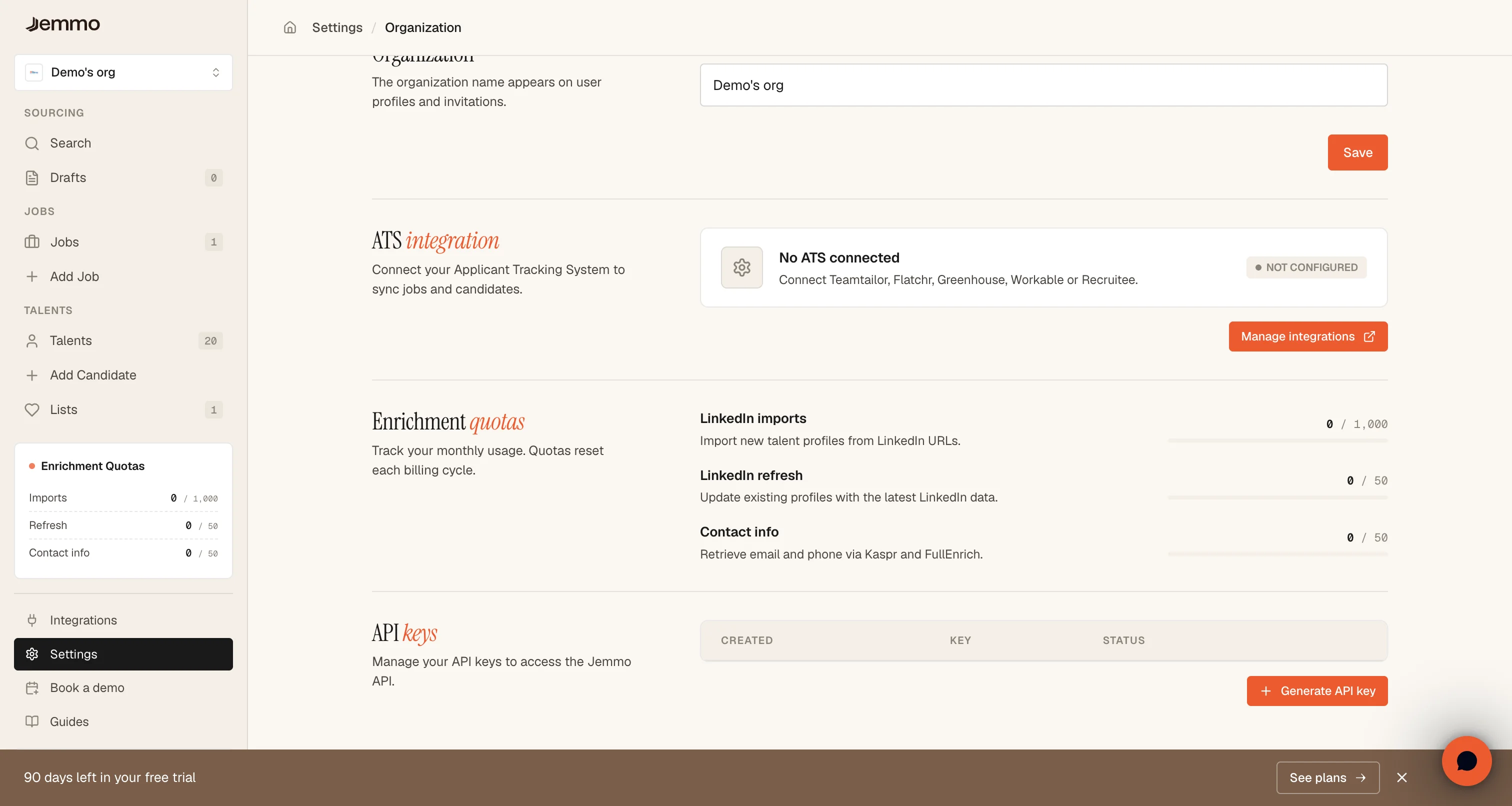
After a successful connection, verify your ATS is properly configured:
- Navigate to Settings > Organization:
- Go to Paramètres > Organisation (French)
- Or Settings > Organization (English)
- Check Integration Status:
- Scroll to the Intégration ATS (ATS Integration) section
- Look for the following information:
- Fournisseur (Provider): Your connected ATS name
- Statut (Status): "Connecté" (Connected)
- Dernière synchronisation réussie: when the last import actually succeeded
- If the status reads "À réparer" (Needs attention, red indicator):
- Nothing has synced for over 48 hours, so Jemmo stopped calling your ATS rather than pile up failures silently
- The error from the last attempt is shown under the status
- Fix the cause (usually an expired API key or a missing setting), then click Relancer (Try again)
Verification Checklist:
- ✅ Provider name is displayed correctly
- ✅ Status shows "Connecté" (green indicator)
- ✅ No error messages in the section
- ✅ Organization name appears correctly
What the Connection Enables:
- Automatic Job Sync:
- Jobs from your ATS appear in Jemmo
- Job details, requirements, and locations sync
- Salary and compensation data are included
- Automatic Candidate Sync:
- Candidates from ATS appear in Jemmo
- Contact information is imported
- Resume/CV files are attached
- Application history is tracked
- Application Tracking:
- Track application status from Jemmo
- See candidate progress in one place
- Update application status from the Jemmo interface
Managing Your Connected ATS
Viewing Sync Status
After connection, monitor your sync activity:
- Initial Sync:
- The first sync may take longer (up to 24 hours)
- Processes all historical jobs and candidates
- Subsequent syncs are incremental and faster
- Ongoing Sync:
- Automatic updates happen regularly
- New jobs appear in Jemmo automatically
- Updated candidate information syncs automatically
- Monitoring Sync Health:
- Check Settings > Organization for connection status
- Review Settings > Logs for sync errors (if available)
- Monitor notifications for sync failures
Disconnecting Your ATS
If you need to disconnect your ATS:
- Navigate to the Integrations Page:
- Go to
/fr/integrations(French) or/integrations(English)
- Go to
- Click on the Connected ATS Card:
- Locate your connected ATS in the "Available Integrations" section
- Click to open the disconnection dialog
- Confirm Disconnection:
- A confirmation modal appears: "Déconnecter l'ATS"
- Modal message: "Êtes-vous sûr de vouloir déconnecter votre ATS ? Vos données synchronisées seront conservées, mais la synchronisation automatique s'arrêtera."
- Translation: "Are you sure you want to disconnect your ATS? Your synced data will be preserved, but automatic sync will stop."
- Complete Disconnection:
- Click Déconnecter (Disconnect) to confirm
- Success toast: "ATS déconnecté - Votre ATS a été déconnecté de votre organisation."
Important Note: Disconnecting preserves all previously synced data in Jemmo. Only automatic synchronization stops. You can manually manage existing jobs and candidates.
Troubleshooting
Connection Issues
Problem: "Connection failed" error message
Solutions:
- Verify API Key Accuracy:
- Double-check your API key for typos
- Regenerate a new API key if you're unsure
- Ensure you're copying the complete key
- Check API Key Permissions:
- Ensure your API key has read access to:
- Jobs/Job postings
- Candidates/Applicants
- Some ATS require specific scopes for different resources
- Verify with your ATS administrator
- Ensure your API key has read access to:
- Network and ATS Status:
- Check your internet connection
- Verify the ATS service is operational (status page)
- Confirm the ATS API is accessible from your location
- Rate Limiting:
- Some ATS providers limit API calls
- Wait a few minutes before retrying
- Check if you've exceeded rate limits (contact ATS support)
Problem: API key accepted but no data is syncing
Solutions:
- Check for Data:
- Ensure your ATS has jobs and candidates
- Test with the ATS directly to confirm data exists
- Check if data is in a published state
- Review Sync Schedule:
- The initial sync may take up to 24 hours
- Subsequent syncs happen incrementally
- Contact support if the sync hasn't started after 24 hours
- Organization Mapping:
- Ensure you're connecting to the correct organization
- Some ATS have multiple organizations or accounts
- Verify you're syncing the intended organization
Missing ATS Provider
If your ATS is not listed:
- Request Integration:
- Under Intégrations Beta (Beta Integrations) section
- Find "Vous ne trouvez pas votre ATS ?" card
- Click to open the request modal
- Submit Request:
- Either:
- Select from dropdown if your ATS is listed as "beta" or "request"
- Choose "Autre" (Other) and enter your ATS name manually
- Click "Soumettre la demande" (Submit Request)
- Either:
- Confirmation:
- Success message: "Demande envoyée - Nous avons reçu votre demande pour l'intégration ATS name."
- Translation: "Request submitted - We've received your request for ATS name integration."
- You'll be notified by email when the integration is available
- Alternative: Import Methods:
- While waiting, use the manual import options
- Import from Files: CSV, Excel, or LinkedIn export
- Import from LinkedIn URLs: Paste profile URLs directly
Best Practices
API Key Security
- 🔐 Never Share: Never share your API key publicly or commit to version control
- 🔐 Secure Storage: Use password managers or encrypted vaults
- 🔐 Regular Rotation: Rotate API keys every 90 days or as recommended
- 🔐 Read-Only Keys: Use read-only keys when available for enhanced security
- 🔐 Revoke Unused: Immediately revoke unused or old keys in your ATS
- 🔐 Monitor Access: Regularly audit which services have API access to your ATS
Sync Strategy
Initial Setup:
- Allow up to 24 hours for the first sync to complete
- Process imports historical jobs and candidates
- Check logs for any import errors or warnings
Ongoing Operations:
- Syncs run automatically on a schedule
- New jobs appear in Jemmo within minutes of creation in ATS
- Updates to candidate data sync incrementally
Conflict Resolution:
- Jemmo merges data from multiple sources intelligently
- ATS data is considered to be the source of truth
- Manual edits in Jemmo may be overwritten by subsequent syncs
Data Integrity:
- ATS remains the authoritative source for job/candidate data
- All changes should be made in the ATS for consistency
- Jemmo enhances ATS data with AI matching and insights
Monitoring and Maintenance
Regular Checks:
- Verify connection status monthly in Settings > Organization
- Review sync logs for errors or warnings
- Monitor for sync failures via email notifications
Performance Optimization:
- Large initial syncs may impact performance temporarily
- Schedule initial syncs during off-peak hours
- Consider staggered imports for very large datasets (10,000+ records)
Backup Strategy:
- Always maintain backups in your ATS
- Jemmo does not replace your ATS backup system
- Export data from both systems periodically
Additional Resources
Alternative Import Methods
If you cannot connect your ATS or prefer manual control:
Import from Files
- Click "Importer depuis fichiers" (Import from Files)
- Upload CSV, Excel, or JSON files
- Supported formats:
- CSV with column headers
- Excel (.xlsx, .xls)
- JSON format
- File requirements:
- Maximum file size: 50MB
- Required columns: name, email, or LinkedIn URL
- Multiple files are supported (batch import)
Import from LinkedIn URLs
- Click "Importer URLs LinkedIn" (Import LinkedIn URLs)
- Paste LinkedIn profile URLs
- Input formats supported:
- One URL per line
- Comma-separated URLs
- Mixed formats are accepted
- Valid URL patterns:
https://www.linkedin.com/in/[profile-identifier]https://fr.linkedin.com/in/[profile-identifier]- Must be public profile URLs
Getting Help
For ATS integration support:
- In-App Help:
- Use the Help chat in the floating bubble in the bottom right corner
- Opens HubSpot chat widget
- Support is available in French and English
- Contact Form:
- Navigate to: https://www.jemmo.io/fr/contact (French)
- Or: https://www.jemmo.io/en/contact (English)
- Submit a support request with:
- ATS provider name
- Error messages (copy exact text)
- Steps taken before encountering the error
- Screenshots if applicable
- Documentation:
- Access this guide anytime from Guides in the navigation
- Check for updates to ATS integration documentation
Quick Reference
Flux de connexion API
Start
  │
  ├─> Navigate to /integrations
  │
  ├─> Select ATS provider card
  │
  ├─> Enter API key from ATS settings
  │
  ├─> Click "Connecter"
  │
  ├─> Validation check
  │   ├─ Success: → Create encrypted connection
  │   └─ Error: → Show error message
  │
  ├─> Redirect to /settings/organization
  │
  └─> Verify status shows "Connecté"
Need immediate assistance? Use the Help Chat in the floating bubble in the bottom right corner.
Integration not working? Contact support at: support@jemmo.io
Looking for other guides? Visit the Guides section.