This guide explains how to use drafts to search for talents without a job description, and how to manage your ongoing search sessions.
What You'll Learn
- Create an exploratory search without a job
- Resume an existing search session
- Organize and manage your drafts
- Convert a draft to a job-based search
What is a Draft?
A draft is an exploratory search session that is not linked to a specific job description.
Typical use cases:
- Proactive talent sourcing for future needs
- Market exploration for a specific profile type
- Testing search criteria before creating a job
- Competitive intelligence or continuous sourcing
Unlike job-based searches:
- No job description required
- Results saved automatically
- Accessible from the Drafts page
- Can be resumed and refined anytime
Create an Exploratory Search
Step 1: Access Search
From the Search page, you can start a search without a job.
Step 2: Enter Your Criteria
In the search panel, use the available forms:
- Free description: Describe the desired profile in free text
- Key skills: List required technologies or competencies
- Optional criteria: Location, seniority, daily rate, etc.
Step 3: Start the Search
Click Search to launch the AI analysis.
What happens:
- A draft is created automatically
- The AI analyzes your criteria
- Talents are ranked by relevance
- Results are saved to the draft
Step 4: View Results
Results display with:
- Match scores (0-100%)
- AI analysis messages
- Matched skills details
Manage Your Drafts
Drafts Page
Access all your drafts from Drafts in the navigation.
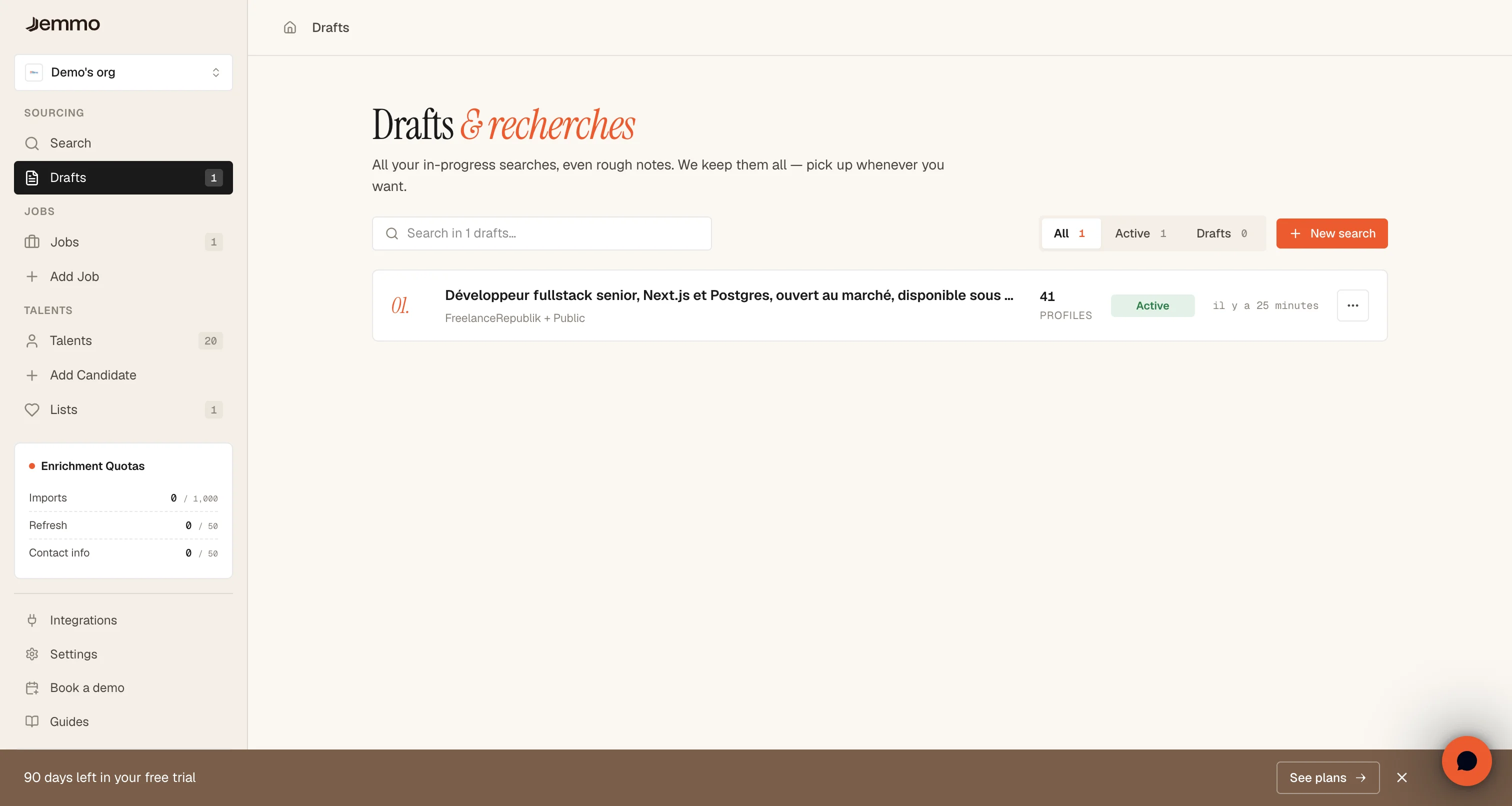
Information displayed:
- Auto-generated title (based on criteria)
- Last modified date
- Number of results found
- Search status
Resume a Draft
- Click on a draft in the list
- The search session reopens with:
- Your previous criteria
- Saved results
- AI message history
Refine an Existing Search
From an open draft, you can:
- Modify search criteria
- Add or remove skills
- Adjust filters (location, seniority, etc.)
- Re-run the search for new results
After modification:
- New results are added to existing ones
- History is preserved
- Draft is updated automatically
Organizing Your Drafts
Best Practices
For effective searching:
- Be precise in your criteria even without a job
- Note the context of each search (client, project, future need)
- Group similar searches by keywords
- Archive or delete obsolete drafts
When to Create a Job?
Convert a draft to a job-based search when:
- The position is officially open
- You have a formal description to import
- You want to track candidates by position
- You need detailed justifications per candidate
Faq
What's the difference between a draft and a job-based search?
| Draft | Job-Based Search |
|---|---|
| No job description required | Based on a job description |
| Ideal for proactive exploration | Ideal for specific positions |
| Accessible from Drafts | Accessible from the job page |
How many drafts can I create?
There is no fixed limit. Drafts are stored in your workspace and accessible anytime.
Do drafts expire?
No, drafts are kept indefinitely until you delete them.
Can I export draft results?
You can add talents to Lists for later follow-up or export them to your ATS.
How do I find an old draft?
Use the search bar in the Drafts page to filter by keywords or criteria.
Need Help?
Need immediate help? Use the help chat in the floating bubble at the bottom right.
Something not working? Contact support: support@jemmo.io
Looking for other guides? Visit the Guides section.