This guide explains how to configure matching rules at the organization level to automate your recurring search criteria.
What You'll Learn
- Understand the 4 rule types
- Create and modify rules
- Use explicit lists (companies, schools)
- Add custom badges
What is a Matching Rule?
A matching rule is an automatic criterion applied to all your talent searches.
Benefits:
- ✅ Time-saving: no need to re-enter recurring criteria
- ✅ Consistency: same rules applied across all searches
- ✅ Automation: AI translates your rules into automatic filters
Use cases:
- Systematically exclude consulting firms
- Prioritize graduates from specific schools
- Penalize profiles with short job tenure
- Make a key skill mandatory
The 4 Rule Types
Each rule belongs to one of 4 categories:
1. Must Have
Effect: Only shows candidates who match the rule.
Examples:
- "Minimum 5 years of experience in software development"
- "Python proficiency required"
- "Team management experience required"
Icon: ✓ (green)
2. Must Not Have
Effect: Automatically hides candidates who match the rule.
Examples:
- "No candidates from consulting firms"
- "Exclude profiles without startup experience"
- "No candidates based outside Europe"
Icon: ✕ (red)
3. Nice to Have
Effect: Boosts matching candidates in the ranking.
Examples:
- "Graduated from top-tier engineering schools"
- "Experience in fintech sector"
- "Healthcare industry knowledge"
Icon: ↑ (blue)
4. Red Flag
Effect: Lowers ranking for matching candidates.
Examples:
- "Short job tenure (less than 2 years per position)"
- "Frequent job changes in short period"
- "No career progression in last 5 years"
Icon: ⚠️ (orange)
Create a Rule
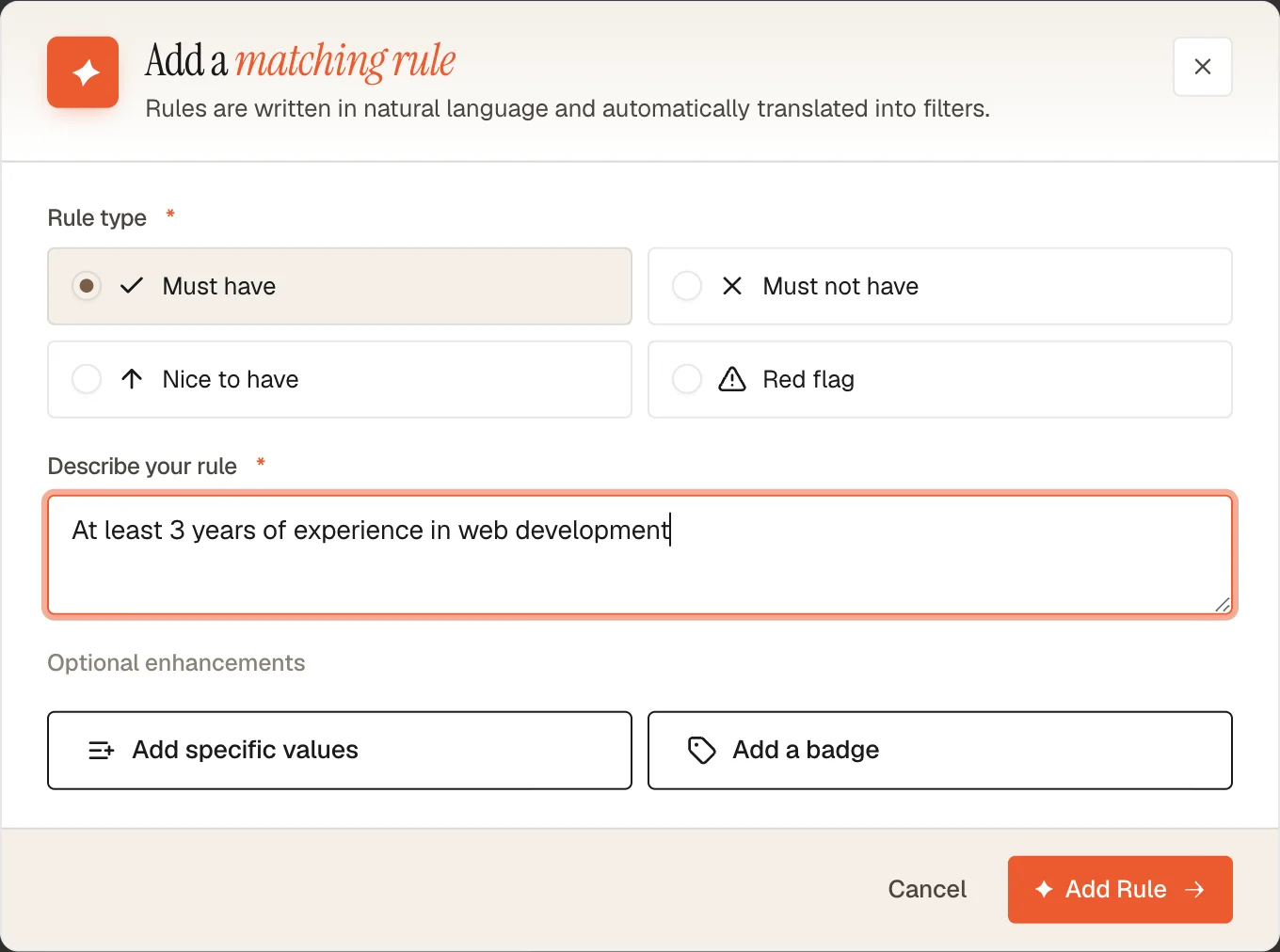
Step 1: Access Matching Rules
From Settings > Matching Rules, click Add Rule.
Step 2: Choose Rule Type
Select one of 4 options:
- Must Have: Strict filtering
- Must Not Have: Automatic rejection
- Nice to Have: Boost in ranking
- Red Flag: Penalize in ranking
Step 3: Describe the Rule
Write your rule in natural language.
Best practices:
- Be precise and concise
- Use AI-understandable terms
- Avoid ambiguous phrasing
Example formulations:
| Type | Example |
|---|---|
| Must Have | "Minimum 5 years of React development experience" |
| Must Not Have | "No candidates from IT consulting firms" |
| Nice to Have | "Graduated from top 10 engineering schools" |
| Red Flag | "Average tenure less than 2 years per position" |
Step 4: Optional Enhancements
Two options to refine your rule:
A. Explicit Values List
Add specific companies, schools, or keywords.
Format: Comma-separated
Examples:
- Companies:
Google, Meta, Amazon, Netflix - Schools:
MIT, Stanford, Berkeley, Caltech - Skills:
Python, Django, PostgreSQL, AWS
B. Custom Badge
Add a visual label displayed in results.
Example badges:
- "Top tier"
- "Priority target"
- "To verify"
- "Atypical profile"
Badge color: Automatically derived from rule type
Step 5: Save
Click Add Rule to save.
The rule is applied immediately to all new searches.
Manage Rules
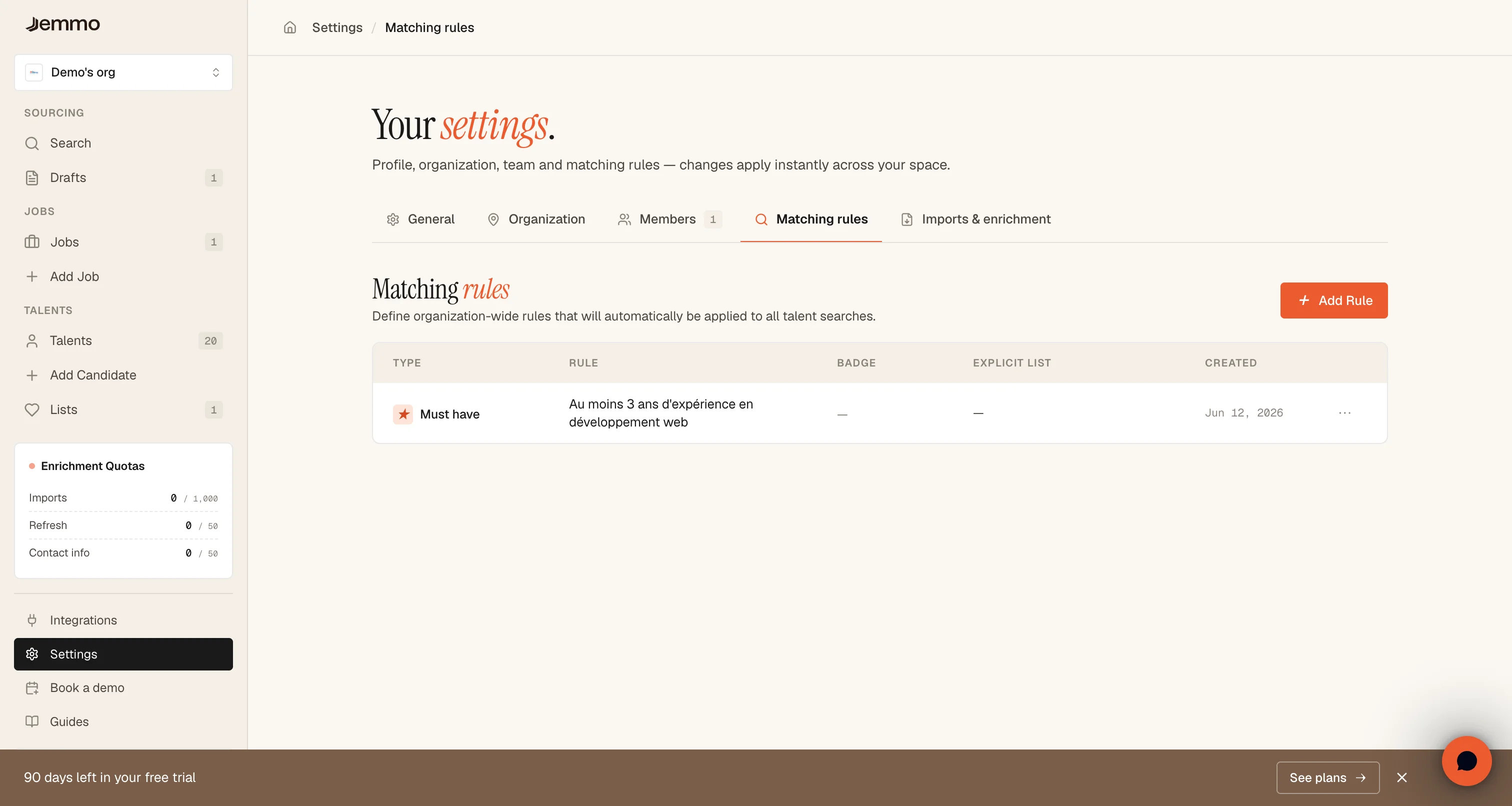
Rules Page
Access all your rules from Settings > Matching Rules.
Columns displayed:
- Type: Icon and rule type label
- Rule: Text description
- Badge: Custom label (if defined)
- Explicit List: Specific values (if defined)
- Created: Creation date
Modify a Rule
- Click the ... to the right of the rule
- Select Edit
- Change desired fields
- Click Save
Changes are applied immediately.
Delete a Rule
- Click the ... to the right of the rule
- Select Delete
- Confirm deletion
Warning: Deletion is immediate and irreversible.
Use Cases
Tech Recruitment
Must Have: "Minimum 3 years backend development experience"
Nice to Have: "Microservices experience"
Must Not Have: "No profiles without production experience"
Red Flag: "Frequent job changes (< 18 months)"
IT Consulting / Services Company
Must Not Have: "No candidates from IT consulting firms"
Nice to Have: "Product company experience"
Badge: "Product profile"
Profile Quality Standards
Red Flag: "Average tenure less than 2 years per position"
Nice to Have: "Career progression in last 5 years"
Must Not Have: "No profiles with more than 5 jobs in 3 years"
Target Schools & Companies
Nice to Have: "Graduated from MIT, Stanford, Berkeley"
Nice to Have: "Experience at Google, Meta, Amazon"
Badge: "Priority target"
Best Practices
Rule Writing
Do:
- ✅ Formulate in precise, natural language
- ✅ Use objective, verifiable criteria
- ✅ Test rules on a few searches before generalizing
Avoid:
- ❌ Vague phrasing ("good level", "significant experience")
- ❌ Subjective or discriminatory criteria
- ❌ Overly restrictive rules that eliminate all candidates
Number of Rules
Recommendation: 3-5 rules maximum per organization
Why:
- Too many "Must Have" rules = no results
- Too many "Must Not Have" rules = reduced talent pool
- AI works better with clear, limited criteria
Maintenance
Do regularly:
- Review rules every 3-6 months
- Remove obsolete rules
- Adjust thresholds (e.g., years of experience) based on market
Faq
Do rules apply to existing searches?
No, rules only apply to new searches created after they are added.
Can I temporarily disable a rule?
Yes, you can individually disable rules from the search panel for a specific search. Rules remain active in the organization but are ignored for that search.
Are rules shared across the organization?
Yes, rules are defined at the organization level and apply to all users.
Can I bypass a rule for a specific search?
Yes, from the search panel you can disable certain rules if needed. This is useful for:
- Testing the impact of a rule on results
- Temporarily expanding the candidate pool
- Running an exceptional search outside standard criteria
Note: Deactivations are temporary and specific to each search.
How many rules can I create?
There is no technical limit, but we recommend 3-5 rules for optimal results.
How does the AI interpret my rules?
The AI analyzes your natural language description and translates it into semantic filters applied during search.
Need Help?
A rule not working as expected? Contact support for personalized assistance.
Looking for other guides? Visit the Guides section.