Recruit from Claude — in one prompt
Jemmo's MCP server puts candidate sourcing natively inside Claude. No tab switching, no Boolean filters, no API keys to manage. Paste one URL, sign in once, and ask Claude to find your next hire across 25M+ profiles.
New: connecting Jemmo no longer requires an API key. Authentication now runs through secure one-click sign-in (OAuth 2.1). Your config holds nothing but a URL — your credentials never live in a file.
Overview
MCP (Model Context Protocol) is the open standard for connecting AI assistants to external tools and data — adopted by Anthropic (Claude), OpenAI, and others. Instead of a custom integration, MCP gives Claude a universal way to talk to Jemmo.
With Jemmo over MCP you can search and shortlist candidates with natural-language prompts, get match scores and justifications, and pull contact details — all in the flow of a conversation.
What you can do today
Candidate search, conversationally:
- Search by skills, location, seniority, and rate
- Get ranked candidates with match scores and reasons
- Pull profile details and contact info (email, LinkedIn, phone)
- Restrict to your own pool, or open up the public marketplace
Why connect Jemmo to Claude
- Native, not another tab. Sourcing happens where you're already working — in the chat.
- Plain language beats Boolean. Describe the person you want; Claude turns it into a search.
- Zero secret management. One-click sign-in means no API key to generate, paste, rotate, or leak.
- Scoped & secure. Access is tied to your Jemmo login and limited to your organization's data.
- Future-proof. As MCP adoption grows, the same connection works across more AI tools.
How the connection works
Connecting takes about a minute and three steps — no key to copy anywhere:
1. Add the URL   →  paste https://mcp.jemmo.io/mcp into your client
2. Authorize     →  a browser window opens; sign in to Jemmo and click Allow
3. Prompt        →  ask Claude to search Jemmo — you're done
Behind the scenes, the first time your client connects, Jemmo replies "authentication required" and points your client to sign in. Your client opens Jemmo in the browser, you log in and approve access on the consent screen, and the connection completes automatically. The token is managed by your client and refreshed for you — nothing is stored in your config.
Prerequisites
Before you begin, make sure you have:
- ✅ A Jemmo account that belongs to an organization
- ✅ An active subscription with API access
- ✅ An MCP-compatible client — Claude Desktop, Claude on the web, or another MCP client
That's it. No admin role to mint a key, no secret to safeguard.
Step-by-step: connect Claude Desktop
Step 1 — Open your Claude Desktop config
| OS | Configuration path |
|---|---|
| macOS | ~/Library/Application Support/Claude/claude_desktop_config.json |
| Windows | %APPDATA%\Claude\claude_desktop_config.json |
| Linux | ~/.config/Claude/claude_desktop_config.json |
Step 2 — Add the Jemmo server
Add Jemmo with just its URL:
{
  "mcpServers": {
    "jemmo": {
      "url": "https://mcp.jemmo.io/mcp"
    }
  }
}
No command, no npx, no env, no token. Save the file and restart Claude Desktop.
Older Claude Desktop builds: if your version doesn't yet support remote MCP servers natively, use the
mcp-remotebridge — which now handles sign-in for you, still with no API key:{ "mcpServers": { "jemmo": { "command": "npx", "args": ["-y", "mcp-remote", "https://mcp.jemmo.io/mcp"] } } }
mcp-remoteopens the browser sign-in flow automatically and caches the session locally.
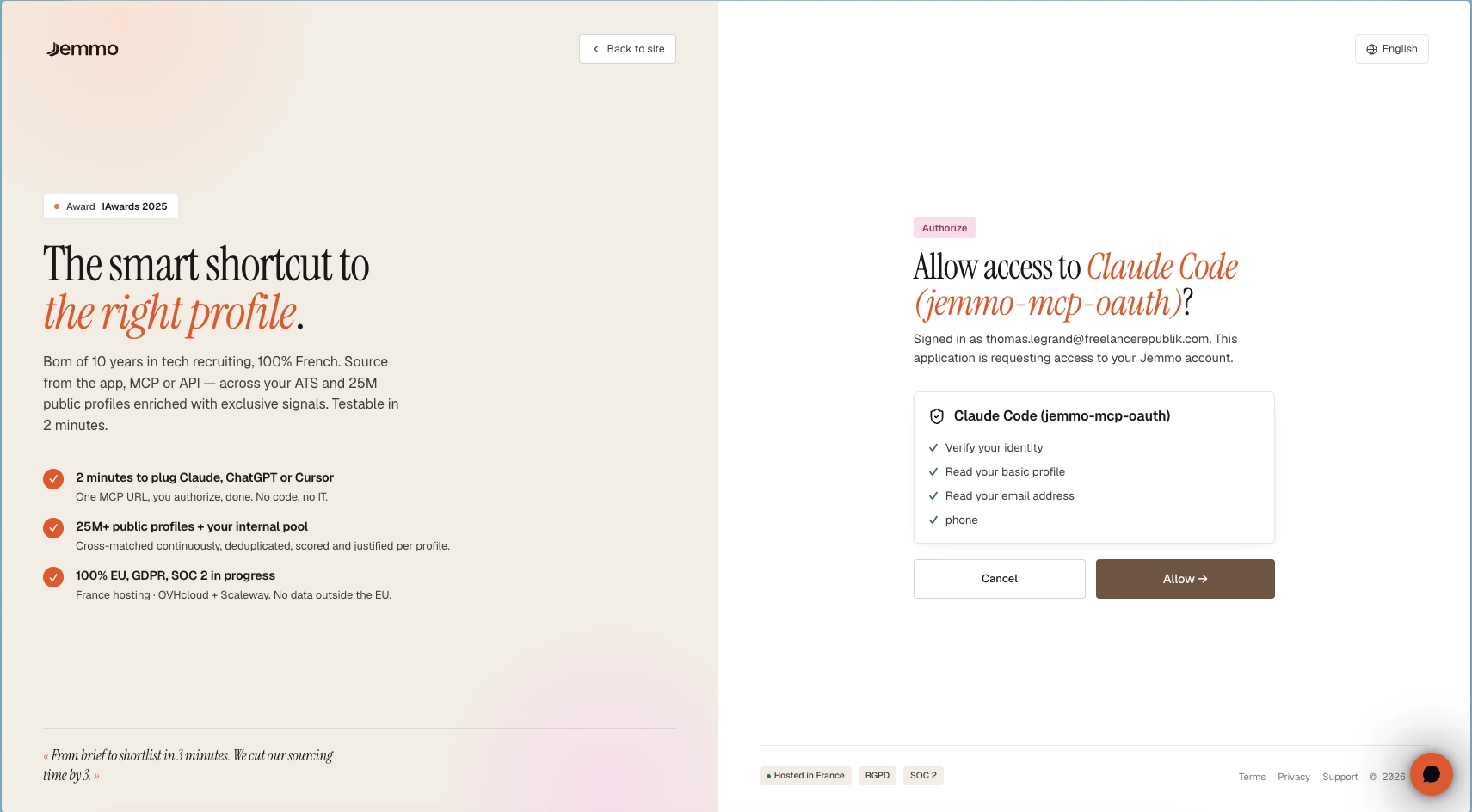
Step 3 — Authorize in your browser
The first time Claude connects to Jemmo, a browser window opens:
- Sign in to your Jemmo account (if you aren't already)
- Review what the connection can access on the consent screen
- Click Allow
The window closes and Claude is connected. You won't be asked again unless you disconnect or sign out.
Step 4 — Try it
Ask Claude:
Search Jemmo for senior Vue.js developers in Paris with fintech experience
If everything is connected, Claude runs the search and returns ranked candidates.
Connect from Claude web & desktop (no config file)
On Claude (web), Cowork, and Claude Desktop you can add Jemmo as a custom connector straight from the UI — no JSON to edit. Available on Free, Pro, Max, Team, and Enterprise plans (Free is limited to one custom connector).
Individual accounts (Pro / Max):
- Go to Customize → Connectors
- Click +, then Add custom connector
- Enter the URL:
https://mcp.jemmo.io/mcp - Click Add
Team / Enterprise (an owner sets it up once for everyone):
- The owner goes to Organization settings → Connectors → Add
- Hover Custom, choose Web, enter
https://mcp.jemmo.io/mcp, click Add - Each member then opens Customize → Connectors, finds the Jemmo connector, and clicks Connect
Either way, clicking Connect opens the Jemmo sign-in and consent screen in your browser (the same one-click flow as above) — no API key, ever.
Enable it in a chat: click the + button in the lower-left of the message box, choose Connectors, and toggle Jemmo on for that conversation. Then prompt away.
See Anthropic's guide to custom connectors for the latest details.
Other MCP clients (LM Studio, Cursor, OpenAI, etc.)
Any MCP client that supports remote servers can connect the same way — point it at the URL and approve the browser sign-in:
{
  "jemmo": {
    "url": "https://mcp.jemmo.io/mcp"
  }
}
No headers, no API key. If a client doesn't yet support the OAuth sign-in flow, use the mcp-remote bridge shown above.
Working with multiple organizations
If you belong to more than one Jemmo organization, searches run against your current default organization unless you say otherwise.
To target a different one, just ask Claude:
List my Jemmo organizations
Claude calls list-organizations and shows each org with its id. Then:
Search Jemmo as <organization name> for backend engineers in Berlin
Claude passes the chosen organization to the search. Most users belong to a single organization and never need this.
Usage examples
Once connected, search in plain language:
Basic search
Search Jemmo for candidates with React experience in Paris
Experience filter
Find Python developers in Jemmo with at least 5 years experience
Location + skills
Search Jemmo for machine learning candidates in Paris or Lyon
Advanced
Search Jemmo for Vue Frontend Lead candidates who have worked on Vue 3 migrations and have e-commerce experience
Match against a job description
Who are the top 5 candidates in Jemmo matching this job description? [paste JD]
Full LLM-native sourcing workflow
Claude can run an entire sourcing pipeline end-to-end — from reading a job description to contacting candidates — by combining Jemmo with other MCP servers.
What you need:
- Jemmo MCP — candidate search and matching
- A file or drive MCP (Google Drive, Filesystem) — to read the job description
- An email MCP (Gmail, Outlook) — to contact candidates
The workflow:
1. Give Claude the job description
Read the job description from my Google Drive: [filename or link]
Or paste it inline, or attach a file — Claude handles all of these.
2. Search Jemmo for matching candidates
Search Jemmo for the best candidates matching this job description. Focus on my own pool first.
Claude calls search-talents, extracts the relevant criteria, and returns ranked candidates with match scores and contact details.
3. Review the shortlist
Show me the top 5 candidates with their contact info and why they match.
Claude presents names, titles, scores, and contact information pulled from Jemmo.
4. Contact candidates directly
Draft a personalized outreach email for the top 3 candidates and send it via Gmail.
Claude composes tailored messages using each candidate's name, role, and match context, and sends them via the Gmail MCP — without leaving the chat.
Result: a complete sourcing loop — job description in, qualified candidates contacted out — without leaving your AI assistant.
Recommended companion MCPs:
- Google Drive MCP — read job descriptions from Drive
- Filesystem MCP — read local files
- Gmail MCP — send outreach emails
Currently supported: candidate search only.
Managing access
Because there's no API key, you manage the connection through your Jemmo login, not a token:
- Disconnect the Jemmo server in your MCP client to stop using it on that device.
- The connection follows your Jemmo account and organization membership — leave or lose access to an organization and searches against it stop working.
- Access is scoped to your organization's data; it can never reach another organization you don't belong to.
Troubleshooting
The authorization window didn't open
- Check your browser's pop-up blocker and allow the window.
- Re-trigger the connection (re-add the server or restart your client).
- If you use the
mcp-remotebridge and a stale session is stuck, clear its cache (~/.mcp-auth) and reconnect.
"User is not associated with an organization" (403)
- Your Jemmo account isn't a member of any organization yet. Ask an admin to add you, then reconnect.
Claude doesn't see Jemmo
- Verify the JSON syntax in your config (brackets, commas).
- Fully quit and reopen your client so it reloads the config.
Results are from the wrong organization
- You likely belong to several orgs. Ask Claude to
list my Jemmo organizations, then search "as". See Working with multiple organizations.
Session expired
- Clients refresh the session automatically. If you're prompted to sign in again, just complete the browser flow — there's nothing to copy.
npx not found (Nix or mise) — only relevant when using the mcp-remote bridge
Claude Desktop looks for executables only in a fixed set of system paths (/usr/local/bin, /opt/homebrew/bin, /usr/bin, /bin, /usr/sbin, /sbin). Node managed by Nix or mise lives outside those, so npx can't be found. Either set an explicit PATH in the env block of the mcp-remote config (point it at your Node install — e.g. ~/.nix-profile/bin for Nix, or the output of mise where node for mise), or switch to a client that supports direct URL connections and skip npx entirely.
Security
The new connection is more secure by default because there's no secret to mishandle:
- No credentials in your config — it contains only a public URL.
- One-click sign-in (OAuth 2.1) — you authenticate in your browser; the token is held and refreshed by your client, never written to a file.
- Organization-scoped — a connection can only reach the data of an organization you belong to.
- Revocable through your account — disconnect in your client or manage access via your Jemmo login.
No more API keys to rotate, store in a password manager, or accidentally commit to git.
Additional resources
Getting help
- In-app help: the Help chat in the floating bubble (bottom right) — available in French and English.
- Contact form: jemmo.io/en/contact — include your client (Claude/OpenAI), any error messages, and config snippets (remove sensitive data).
- API documentation: jemmo.io/api.
Need immediate assistance? Use the Help Chat in the floating bubble in the bottom right corner.
Connection issues? Contact support: support@jemmo.io
Looking for other guides? Visit the Guides section.