This guide explains how to import talents into Jemmo from various sources: resumes (PDF, DOCX), files (CSV, Excel, JSON), and LinkedIn profile URLs.
What You'll Learn
- Add candidates by dragging and dropping resumes
- Import talents from CSV, Excel, or JSON files
- Import talents from LinkedIn profile URLs
- Track the progress of ongoing imports
Three Import Methods
Jemmo offers three ways to add talents, suited for different needs.
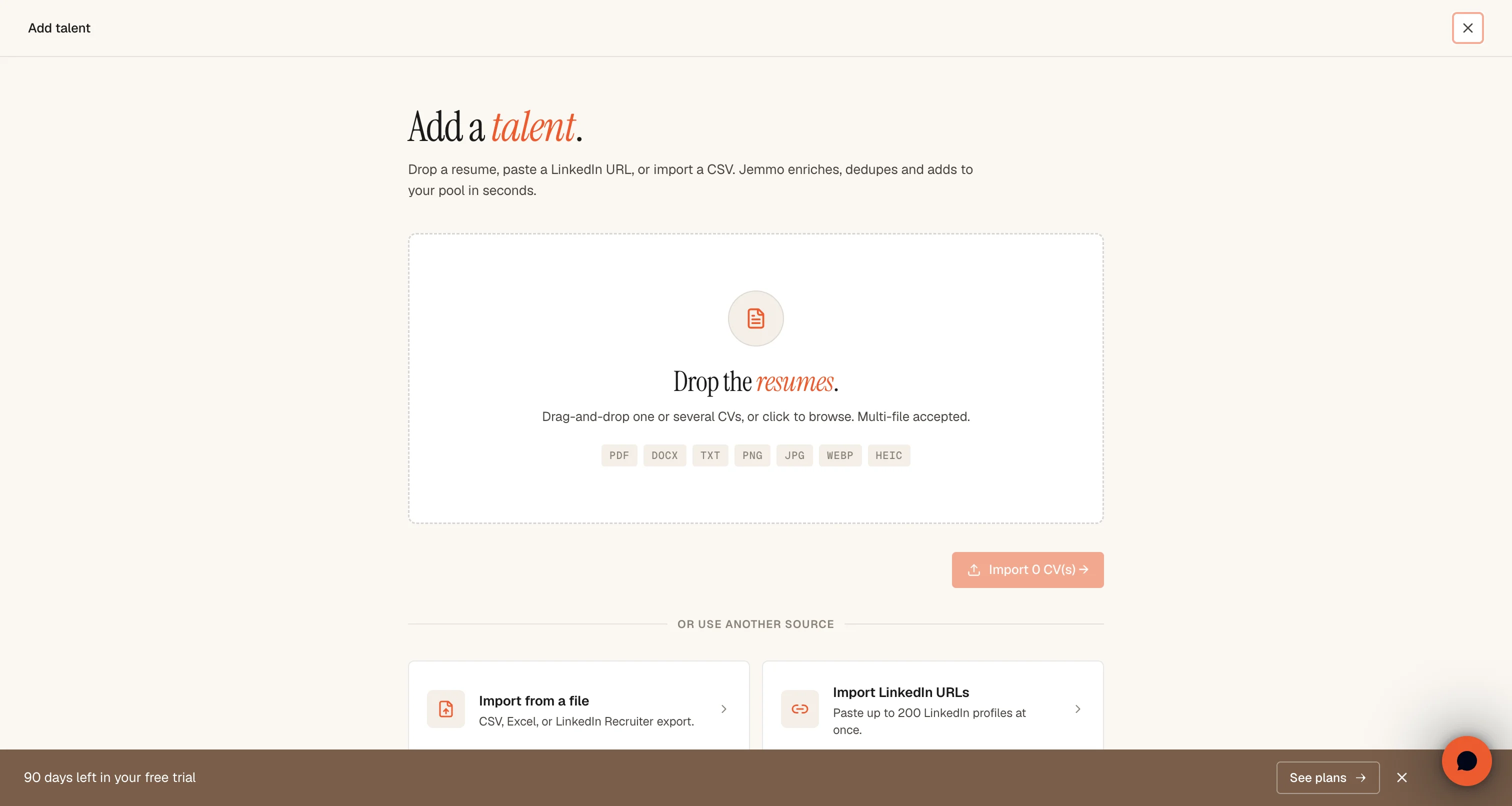
1. Resume Upload (single or multiple)
Drag and drop resumes directly in PDF or DOCX format.
Ideal for: Adding a few candidates manually, one by one or in batches.
2. File Import
Import CSV, Excel (.xlsx, .xls), or JSON files.
Up to 50MB maximum.
Ideal for: Importing your exported LinkedIn network or an existing candidate database.
3. LinkedIn URL Import
Paste LinkedIn profile URLs, one at a time or in batches.
Ideal for: Quickly importing specific LinkedIn profiles.
How to Add Talents
Open the Add Panel
From any page, click the + Add a candidate button in the sidebar.
The panel offers three options:
- Top: Drag and drop resumes directly
- Bottom left: Import from a file
- Bottom right: Import LinkedIn URLs
Method 1: Resume Upload
Step 1: Drag and Drop Resumes
In the Curriculum Vitae section, drag one or more PDF/DOCX files.
Limits:
- Formats: PDF, DOCX only
- Maximum size: 5MB per file
- Multiple files supported
Step 2: Confirm the Upload
Click Add to start processing.
What happens:
- The resume is automatically analyzed
- Information is extracted (experience, skills, education)
- The talent is created in your database
Method 2: File Import
Step 1: Access File Import
From the Add Candidates panel, click Import from files.
Step 2: Prepare Your File
For a LinkedIn export:
The easiest way to import your professional network is to export your LinkedIn connections directly.
- Go to LinkedIn Settings > Data Privacy
- Click Get a copy of your data
- Select Download larger data archive
- Request the archive (usually available in 10-30 minutes)
- Retrieve the
Connections.csvfile from the received archive
Jemmo has successfully processed exports of more than 30,000 profiles. Feel free to import your entire network.
For your own CSV/Excel files:
Make sure your file contains a column with LinkedIn profile URLs for optimal enrichment.
Recommended columns:
- LinkedIn URL (required for enrichment)
- First Name, Last Name
- Company
- Job Title
Step 3: Upload the File
Drop your file in the upload zone or click to browse your files.
Limits:
- Maximum size: 50MB
- Formats: CSV, JSON, XLSX, XLS
Step 4: Import Processing
After upload, your file is processed in the background.
What happens:
- The file is analyzed
- LinkedIn URLs are extracted
- Profiles are automatically enriched
- Talents are created in your database
Estimated duration:
- Small file (< 100 profiles): a few minutes
- Medium file (100-1000 profiles): 10-30 minutes
- Large file (> 1000 profiles): varies by volume
Step 5: Track Your Import
Find your imports in the Import History section.
Possible statuses:
- Pending: File uploaded, waiting for processing
- In Progress: Processing underway
- Completed: Import finished successfully
- Failed: Error during processing (contact support)
Method 3: LinkedIn URL Import
Step 1: Access LinkedIn Import
From the Add Candidates panel, click Import LinkedIn URLs.
Step 2: Enter the URLs
Paste your LinkedIn profile URLs in the text field.
Accepted formats:
https://www.linkedin.com/in/john-doe-12345678/
https://fr.linkedin.com/in/jane-smith-87654321/
https://linkedin.com/in/pierre-durand-11223344/
Separators:
- One URL per line
- Or comma-separated
Step 3: Automatic Validation
Jemmo automatically detects valid and invalid URLs.
Valid URLs: Format linkedin.com/in/... recognized
Invalid URLs: Will be ignored (company pages, groups, etc.)
Step 4: Start the Import
Click Start Import to begin processing.
Confirmation:
- Number of profiles added to the queue
- Success notification
Step 5: Track Enrichment
LinkedIn profiles are automatically enriched.
Extracted information:
- First and last name
- Current job title
- Current company
- Professional experience
- Education
- Skills
Import Tracking
Import History Page
Access the complete history from Settings > Imports & enrichment.
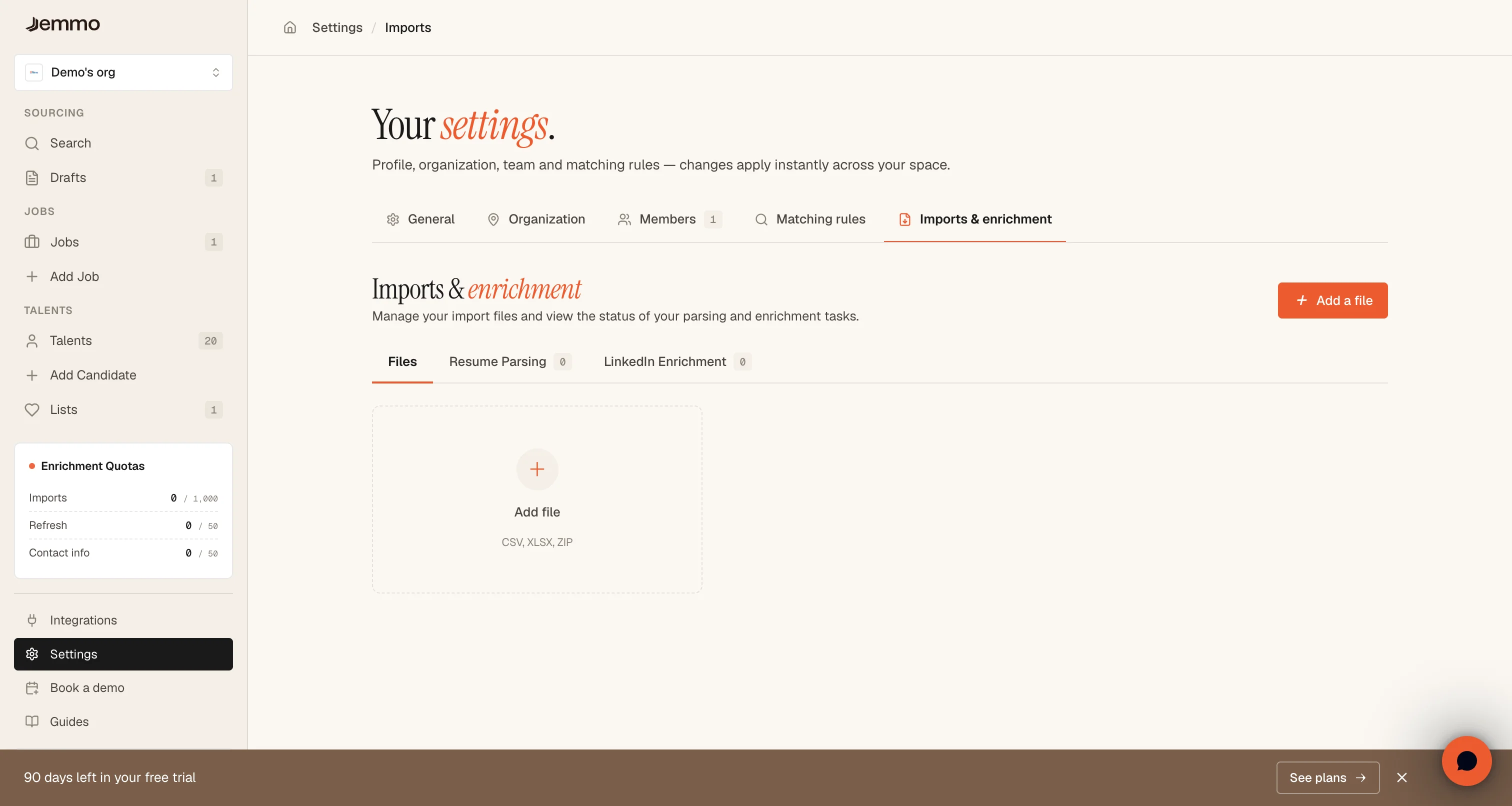
Columns displayed:
- File Name: Name of the uploaded file
- Status: Processing state
- Date: Upload date
- Size: File size
- Actions: Delete, re-import
LinkedIn Enrichment Tasks Page
Check the progress of LinkedIn enrichments from Settings > Imports & enrichment.
Information displayed:
- Total number of profiles
- Profiles processed / remaining
- Success rate
- Quota consumed
Best Practices
Prepare Your Files
Before importing:
- Verify that LinkedIn URLs are up to date
- Remove empty or unnecessary rows
- Ensure the file is readable (not corrupted)
Handle Large Imports
For large volumes:
- Jemmo natively supports imports of tens of thousands of profiles
- You can split into multiple files if needed
- Wait for each batch to complete before continuing
Optimize LinkedIn Enrichment
For best results:
- Use complete profile URLs
- Prefer public profiles or 1st degree connections
- Check your LinkedIn quota before importing
Faq
How long does the import take?
Processing depends on file size:
- < 100 profiles: 2-5 minutes
- 100-1000 profiles: 10-30 minutes
- > 1000 profiles: varies by volume
Can I import a file with non-LinkedIn profiles?
Yes, but only name and email will be extracted. For complete enrichment (experience, skills, education), a LinkedIn URL is required.
What happens in case of duplicates?
Jemmo detects duplicates based on LinkedIn URL. If a profile already exists, it is not recreated.
Is there a limit on the number of imports?
The limit depends on your subscription. Contact us for large volumes.
My import failed, what should I do?
Check:
- File format (CSV, Excel, JSON only)
- File size (< 50MB)
- Presence of at least one column with URLs or emails
If the problem persists, contact support.
What is the limit of importable profiles?
Jemmo has already processed imports of more than 30,000 profiles without issues. For very large volumes, contact us to optimize the process.
Need Help?
Need immediate help? Use the help chat in the floating bubble at the bottom right for live support chat.
Something not working? Contact support: support@jemmo.io
Large import? Contact our support for personalized assistance.
Looking for other guides? Visit the Guides section.